
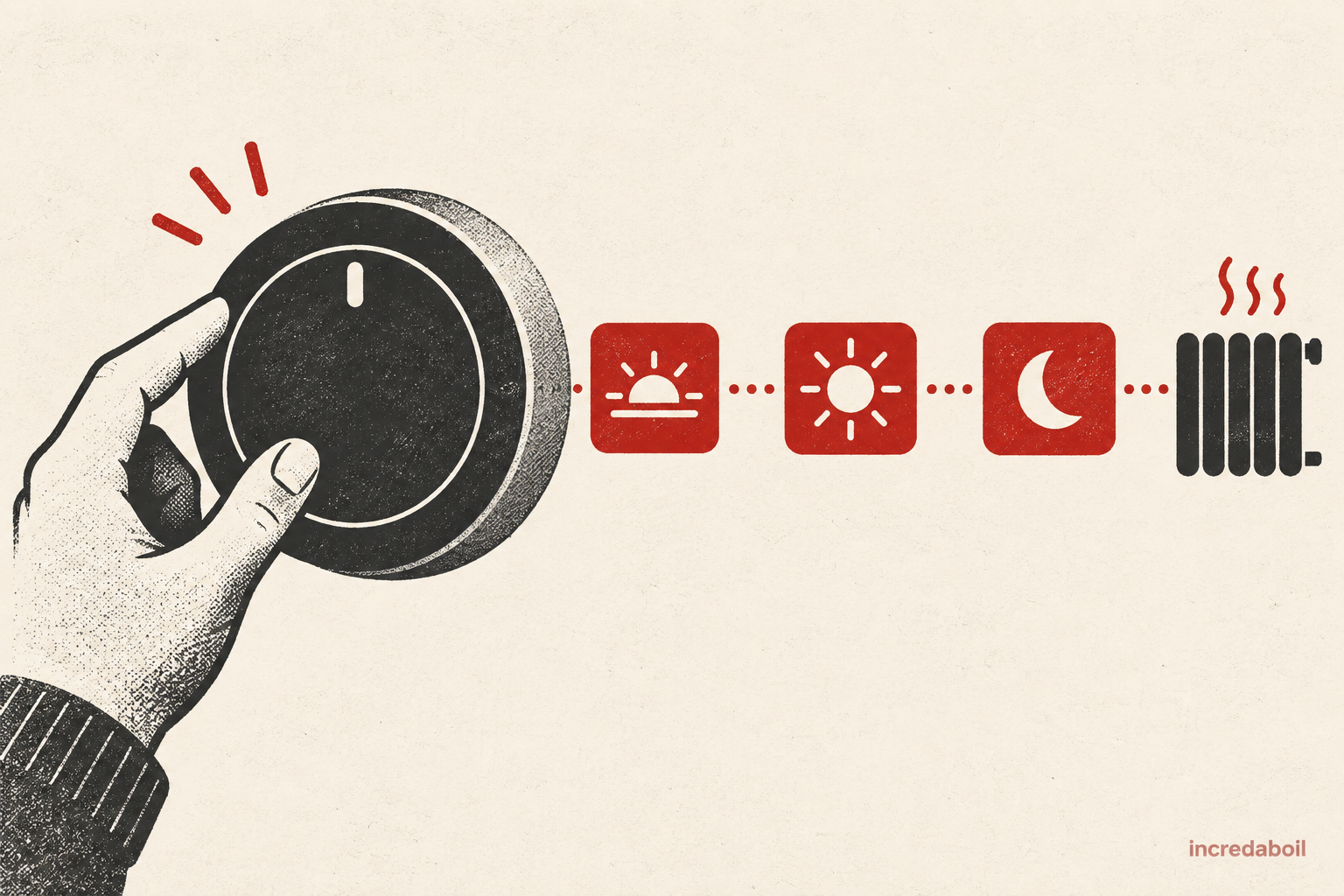
You can programme a Hive thermostat in the Hive app, and many full-size dial models can also be programmed on the thermostat itself. In the current app, open Home, choose Heating and tap View Schedule. Select a day, enter the time and target temperature for each period, then save the changes.
Before changing anything, identify your thermostat. The full-size Hive Thermostat or Hive Active Heating 2 has a turn-and-push dial with separate menu controls. The compact Hive Thermostat Mini has touch icons and must use the app to create or edit a schedule. The exact menus can also vary slightly with app updates and whether your system controls heating only or heating and stored hot water.
What a Hive heating schedule actually does
A heating schedule changes the target room temperature at chosen times. It does not simply run the boiler continuously between an on time and an off time. If the room is already warm enough, the boiler may remain off. When the measured temperature falls below the target, Hive asks the heating system for heat.
Hive says you can create up to six time slots per day. In practice, use warmer targets when the home is occupied and a lower target for periods when less heat is needed. Avoid making every slot high, because that removes much of the benefit of scheduling.
How to programme Hive in the app
- Open the Hive app and tap Home at the bottom left.
- Tap Heating.
- Tap View Schedule at the bottom of the heating screen.
- Select the day you want to programme.
- Open the first time slot and choose its start time.
- Select the target temperature and the time that period should end.
- Tap Done, then add or adjust the other periods.
- Check the complete day and save the changes.
Button names can move as the app changes, but the route remains Heating, schedule, day, time and temperature. If View Schedule is missing, stop an active Boost first. Hive says schedules cannot be viewed or edited during a boost.
Copy a good schedule to other days
Once one day is correct, open that day, tap the three dots at the bottom right of the schedule screen, select the other days and tap Apply. Copying Monday to every day is quick, but check whether weekends or home-working days need different times before applying it everywhere.
After copying, open at least one copied day to confirm its slots. A schedule that crosses midnight can be easier to understand when the new day begins with the temperature you want from midnight.
Keep the first version uncomplicated for a few days. Note when the rooms become comfortable, when the boiler runs unnecessarily and whether anyone regularly overrides the target. Use that evidence to adjust one time or temperature at a time instead of rebuilding the whole week.
How to programme a full-size dial Hive Thermostat
On the commonly fitted Hive Active Heating 2 or SLT3 dial thermostat, the official user guide gives this route:
- Push the dial to wake the screen, then press the Menu button.
- Turn the dial to Heat and push the dial to confirm.
- Select Schedule.
- Choose Start Over to build a new schedule.
- Follow the on-screen instructions for days, times and temperatures.
To inspect an existing schedule, wake the thermostat, open Menu, Heat and Schedule, then choose View/Edit Current. Turn the dial to browse the days, select a day and push the dial to edit it. Read each screen before confirming; an older Hive 1 or a wired model may use different buttons.
Choose a simple schedule first
A useful starting pattern for many households is a comfortable morning period, a lower target while the home is empty, a comfortable evening period and a lower overnight target. The best times depend on who is home, how quickly the property warms and whether anyone needs extra warmth for health reasons.
Energy Saving Trust advises setting a room thermostat to the lowest comfortable temperature, usually between 18°C and 21°C for most people. NHS winter advice says regularly used rooms should, if possible, be at least 18°C, particularly where someone has a health condition. Use those as context, not a rigid schedule for every person and room.
Schedule, Manual, Boost and Off
Schedule
Schedule follows the programmed times and target temperatures. Use this mode when you want the normal weekly plan to run.
Manual
Manual holds a constant target instead of moving through the weekly plan. It is useful for an unusual day, but leaving it selected can make the household think the schedule has failed.
Boost
Boost temporarily asks for a higher target for a chosen period. It should end without permanently rewriting the normal schedule. Hive says an active Boost prevents schedule viewing or editing in the app, so tap Stop Boost before making changes.
Off
Off stops normal heating demand while frost protection remains available. It is not the same as switching electrical power off at the boiler or receiver.
What does Ready By do?
On supported Hive Active Heating models, Ready By can start the boiler before a scheduled time so the room reaches the target by that time. Hive says it can start up to one hour early. That is different from a normal start-time schedule, where the target changes at the chosen time.
In the app, select the thermostat, open Settings and toggle Ready By. On a compatible dial thermostat, Hive describes the route as Menu, Heat, Schedule, Start Over, then Be at Temperature. Ready By is not available on Hive 1 or the Hive Thermostat Mini.
How to programme stored hot water
If the property has a hot-water cylinder and a compatible dual-channel Hive receiver, the app normally shows Hot Water separately. Open Hot Water, tap Schedule, choose a day, select the start and end times and save.
A combi boiler heats tap water when it is requested, so there is normally no separate hot-water schedule. The Hive thermostat does not set the temperature of stored hot water; it controls when the cylinder-heating circuit runs.
Why is Hive not following the schedule?
Check the simple causes in this order:
- confirm the heating mode is Schedule, not Manual, Boost or Off;
- check the correct day and every slot, including the overnight target;
- stop any active Boost;
- check Alexa, Google Home or Hive Actions are not issuing another command;
- check the thermostat date and time;
- confirm the thermostat, receiver and hub show as connected; and
- compare the target temperature with the actual room temperature.
If the target is lower than the current room temperature, the boiler should not run. That is normal control, not a fault. If Hive shows a flame or heat demand but the boiler and radiators remain cold, the control may be asking correctly while the receiver, wiring, boiler or heating system is not responding.
Will the schedule run without Wi-Fi?
Hive says previously saved heating and hot-water schedules continue to run when the internet connection is down. Local thermostat temperature changes should also remain available. App control will be unavailable until the connection returns.
Do not repeatedly reset or unpair every device because the broadband is temporarily offline. Check the Hive service status, router, hub and device status first, then follow the model-specific Hive support steps.
When the problem is the boiler rather than Hive
If the thermostat shows the correct target and a heating demand but the home stays cold, check the boiler display, pressure and whether any radiators warm. Record any fault code exactly. Do not remove covers, alter receiver wiring or attempt an internal boiler repair.
Incredaboil’s fixed-price boiler repair service applies to eligible Baxi, Worcester Bosch and Ideal boilers. A control or wiring issue may need different work, so describe the Hive display, receiver lights and boiler behaviour when booking.
Frequently asked questions
How many Hive heating periods can I set?
Hive’s current support guidance says up to six time slots per day. Each slot sets the target for that part of the day.
Why can’t I edit my schedule?
An active Boost can hide schedule editing. Stop the Boost, return to Heating and open View Schedule again.
Does turning the dial erase the schedule?
A temporary temperature adjustment should not rewrite every schedule slot. The next scheduled change normally resumes control, provided the thermostat remains in Schedule mode.
Can I schedule heating without the app?
Many full-size Hive dial thermostats can create and edit schedules through Menu, Heat and Schedule. The Hive Thermostat Mini requires the app to create or edit its schedule.
Why does the boiler start before the scheduled time?
Ready By may be enabled on a compatible model, or another connected service may be issuing a command. Check Ready By, voice assistants and Hive Actions.
Related boiler-help guides
- How do I program my Hive Mini?
- Hive thermostat not turning the heating on
- What temperature should my house be?
- Boiler not responding to the thermostat
Hive calling for heat but the boiler stays cold?
Book a fixed-price Incredaboil repair for an eligible Baxi, Worcester Bosch or Ideal boiler and have the heating fault checked properly.